Start here · 5 min
Which Copilot do I actually have?
Any account
Short answer: Sign in at copilot.cloud.microsoft and read the label under your name: Copilot Chat (Basic), Microsoft 365 Copilot (Basic), or Microsoft 365 Copilot (Premium). That label shows where you can use Copilot at work. Copilot Cowork is a separate usage-billed add-on that your admin has to grant.
Last checked against Microsoft docs: Oct 20, 2026
A common situation (composite)
Copilot keeps showing me buttons that do nothing.
A tutorial says to click Agents, and I don't have Agents.
Which Copilot do I even have?
What you get
A short written record of what you have: your account, your app, and your license. Then you know which guides fit you.
- Data: what you can see on your own screen, plus what IT tells you.
- Does: sorts what you know from what you still need to ask.
- Output: a one-line record: account, app, license, date.
- How often: once, then again when your screen changes.
Time saved: about 10 min the first time (estimate)
Before you start: 2 minutes of setup
- Know the two kinds of account. A personal Microsoft account and a work or school account are different. Keep them in separate browser profiles.
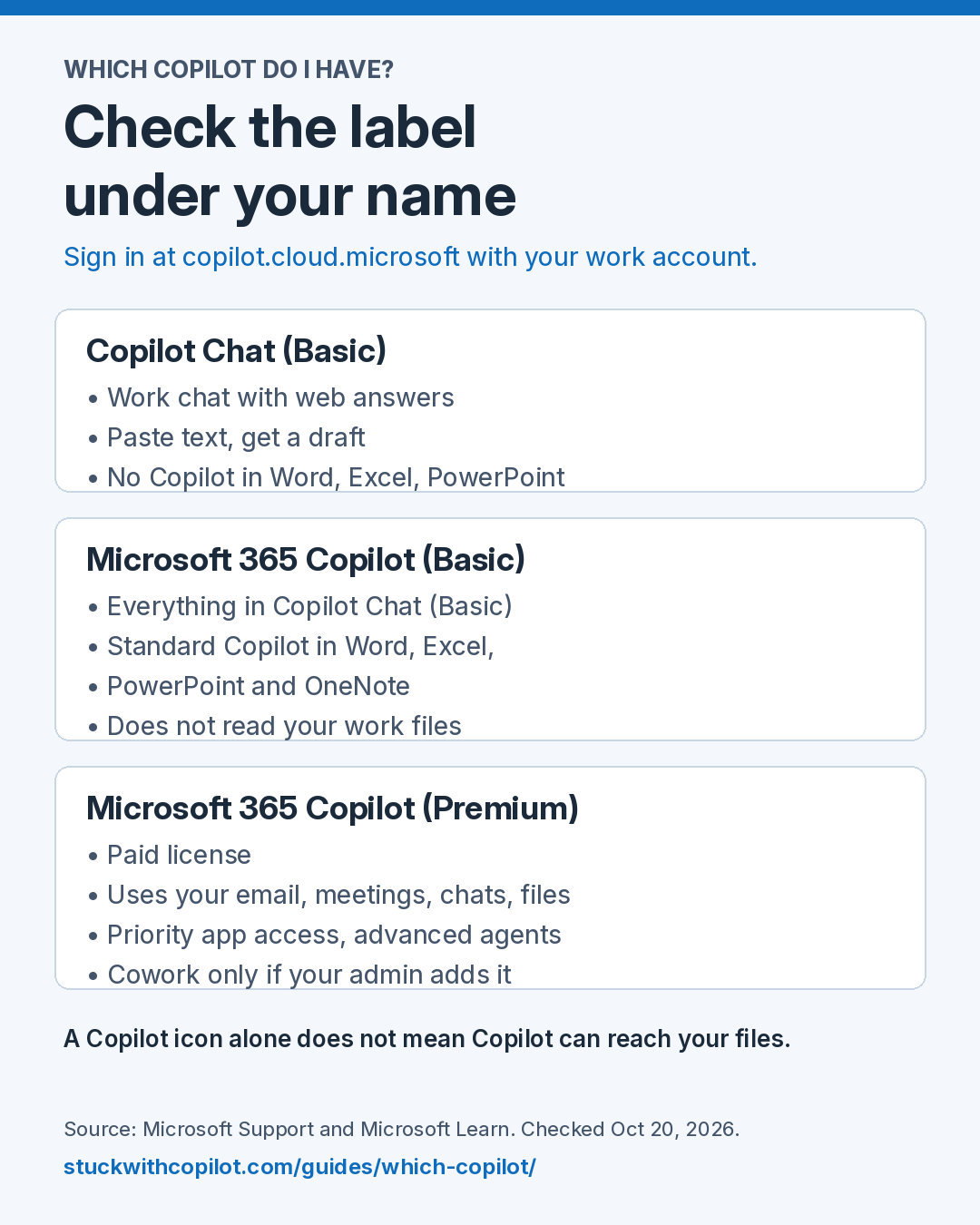
- Know the three work labels. Sign in at copilot.cloud.microsoft. Under your name you will see one of these (Microsoft Support):
- Copilot Chat (Basic): the work chat with web data. No Copilot in Word, Excel, PowerPoint, or OneNote.
- Microsoft 365 Copilot (Basic): the work chat with web data, plus standard access to Copilot in the Office apps (Word, Excel, PowerPoint, OneNote). No paid add-on license.
- Microsoft 365 Copilot (Premium): the paid add-on license. Copilot can use your work data (email, meetings, chats, files) and you get priority access in the apps and advanced agents.
- Know about Cowork. Copilot Cowork runs longer, multi-step tasks. It became generally available on June 16, 2026 (Microsoft announcement). It needs a Microsoft 365 Copilot license and is billed by usage. Your admin grants access through a spending policy that selects Cowork. If you are not in one, you will not have Cowork (Microsoft Learn: Manage Copilot Cowork).
- Know who decides. Your Microsoft 365 administrator assigns licenses and turns features on or off.
The steps
- Check whether you signed in with a personal Microsoft account or a work or school account. Keep them in separate browser profiles.
- With your work account, go to copilot.cloud.microsoft and write down the label under your name.
- If you need more than your label gives you, or you want Cowork, ask your Microsoft 365 administrator to confirm your exact assigned license and whether the app and feature you need are turned on.
- Write down the app, account type, the controls you can see, and the date. Compare this with the prerequisites on the guide you want to try.
- If a tutorial shows a feature you cannot see, use its manual fallback. Do not move work data to a personal tool.
Copy this prompt
Copilot cannot look up your license for you. This prompt only helps you sort what you know from what you must ask IT.
Help me identify the prerequisites for this Copilot workflow.
Account type: [personal or work]
App: [where you use Copilot, e.g. browser or Word]
Assigned license: [your label, or "not sure"]
Desired task: [what you want to do]

Separate confirmed capabilities from things I must ask my administrator to verify. Do not assume access to my work files.

(Prompt from stuckwithcopilot.com/guides/which-copilot/)Before and after
Before (example, fictional)
signed in w/ work email i think
using copilot in browser, also a button in word?
screen says "copilot chat" something
license?? no idea
want: summarize a sharepoint folder (fictional task)
After (example output, fictional)
MY COPILOT RECORD (fictional)
Account type:   Work account (confirm with IT)
App:            Copilot Chat in browser; button seen in Word
Label:          Copilot Chat (Basic) (from copilot.cloud.microsoft)
License:        UNKNOWN
Date checked:   [date]

Confirmed
- I can paste text into the work chat.

Ask my administrator to verify
- Which license is assigned to me?
- Can Copilot read files in SharePoint for me?
- Is the Word button turned on for my account?
If a feature is missing
Ask IT for a screenshot-free list of your assigned licenses and allowed features.
Make it smarter
Keep your record in a note. When your screen changes, add a new line with the date. Then you can see what changed, and ask IT about it.
Once you know your label, see what each Copilot label can do, or grab the one-page cheat sheet (PDF).
Not sure what to ask? Copy the questions for your Copilot admin.
Questions people ask
Which Copilot do I have at work?
Sign in at copilot.cloud.microsoft with your work account and read the label under your name: Copilot Chat (Basic), Microsoft 365 Copilot (Basic), or Microsoft 365 Copilot (Premium). Seeing a Copilot icon does not prove you can reach work data or agents.
Why don't I have Copilot Cowork?
Cowork is billed by usage, and your admin turns it on through a spending policy that selects Cowork. If you are not in that policy, you will not have it. Ask IT.
What if I cannot find a Copilot feature?
Ask IT for a written list of the licenses you have and the features you are allowed to use. A list is better than a screenshot.
Practice first, then try your own work.
Download the fictional notes and run the prompt once. Then pick your next workflow.
Download practice notes ↗Cite or share this guide
Which Copilot do I actually have?. Stuck with Copilot. https://stuckwithcopilot.com/guides/which-copilot/ Last checked Oct 20, 2026.
Get one Copilot fix a week
One short email each week: a workflow that works, one Microsoft change worth knowing, and an answer to a reader question.
Official references
- Microsoft Copilot Chat overview
- Microsoft 365 Copilot licensing
- How Copilot Chat works with and without a license (labels)
- Microsoft 365 Copilot overview (compare the three labels)
- Copilot Cowork is now generally available (June 16, 2026)
- Manage Copilot Cowork (spending policy access)
Last checked against Microsoft docs: Oct 20, 2026.